Getting started on a Mac
Install memoreei, then pick how your chatbot reaches it. If your chatbot runs on your Mac, you're done in two minutes.
1. Install
Download memoreei for Mac from the latest release:
Memoreei-arm64.dmgfor Apple silicon,Memoreei-x86_64.dmgfor Intel. Drag it into Applications.Open it from Finder the first time: right-click it, then Open. It isn't signed by Apple yet, so on macOS 15 and later double-click it once, then press Open Anyway in System Settings → Privacy & Security. memoreei then lives in your menu bar, not the Dock.
Give it Full Disk Access when its window asks: iMessage needs it. Then, in the dashboard it opens in your browser, set up iMessage under Sources, and WhatsApp or Signal too if their Mac apps are installed.
2. Pick a route
Where does your chatbot run? That decides everything else.
If it's an app on your Mac
Free · works nowClaude Code, Hermes and other apps that take an MCP address and a key can use memoreei straight away. No Relay, no address, no port forward.
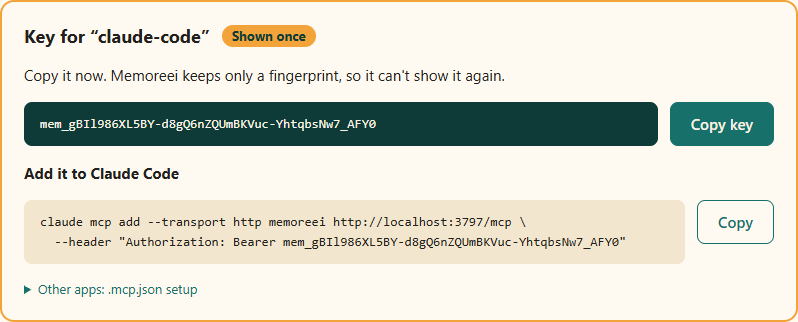
Choose Connections… from memoreei's menu. Under An app on this computer, press Make a key, give it a name, and press Create key.
memoreei shows the key once, with the line that adds it to Claude Code and an .mcp.json for other apps. Add it, then restart the app.
If it's Claude.ai or ChatGPT, with Relay
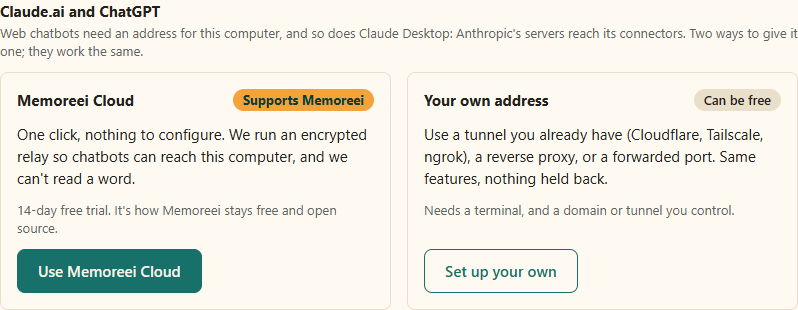
$4 a month · one clickChoose Connections… from memoreei's menu, and under Memoreei Cloud press Use Memoreei Cloud.
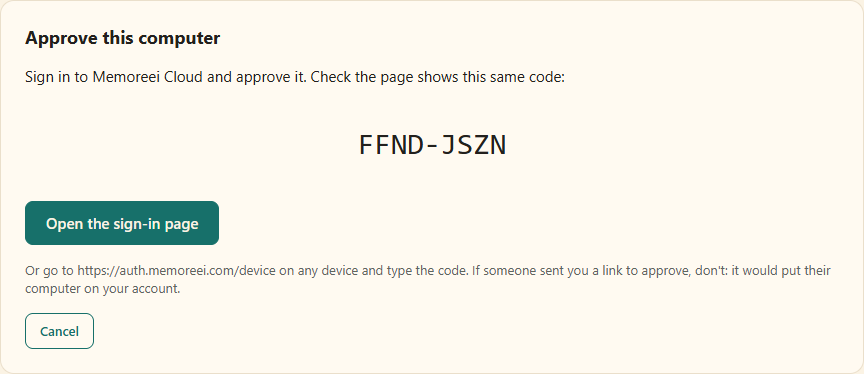
A short code shows on your Mac. Press Open the sign-in page, and auth.memoreei.com/device opens in your browser.
Sign in, check the code on the page matches the one on your Mac, and press Connect.
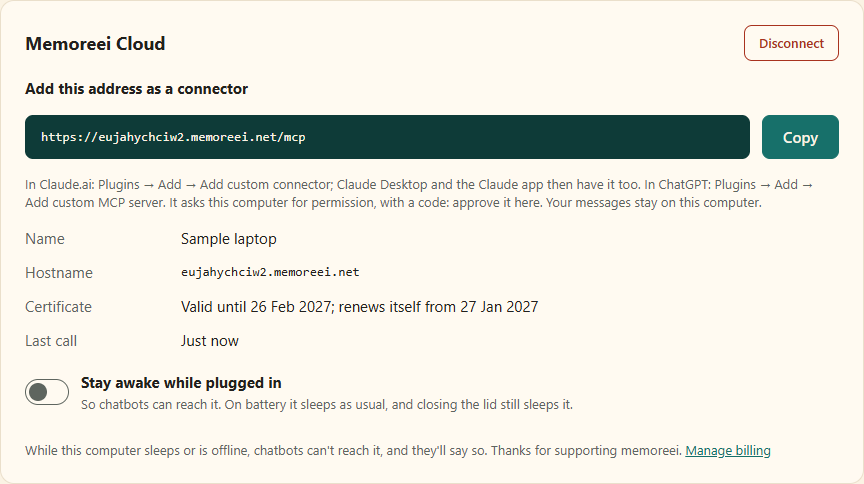
Back on your Mac, Connections shows its address. It ends in .memoreei.net/mcp. Add it to your chatbot.
If it's Claude.ai or ChatGPT, with your own address
Free · some setupSet up a tunnel, reverse proxy or forwarded port with the self-hosting guide. Your address is whatever that gives you, plus /mcp.